
Reviewing Your Group Index
The Group Index (the Active Groups page) helps you review the groups you’ve uploaded, confirm which groups are ready to use in campaigns, and quickly find a specific group by searching or filtering the list.
TABLE OF CONTENTS
Active Groups
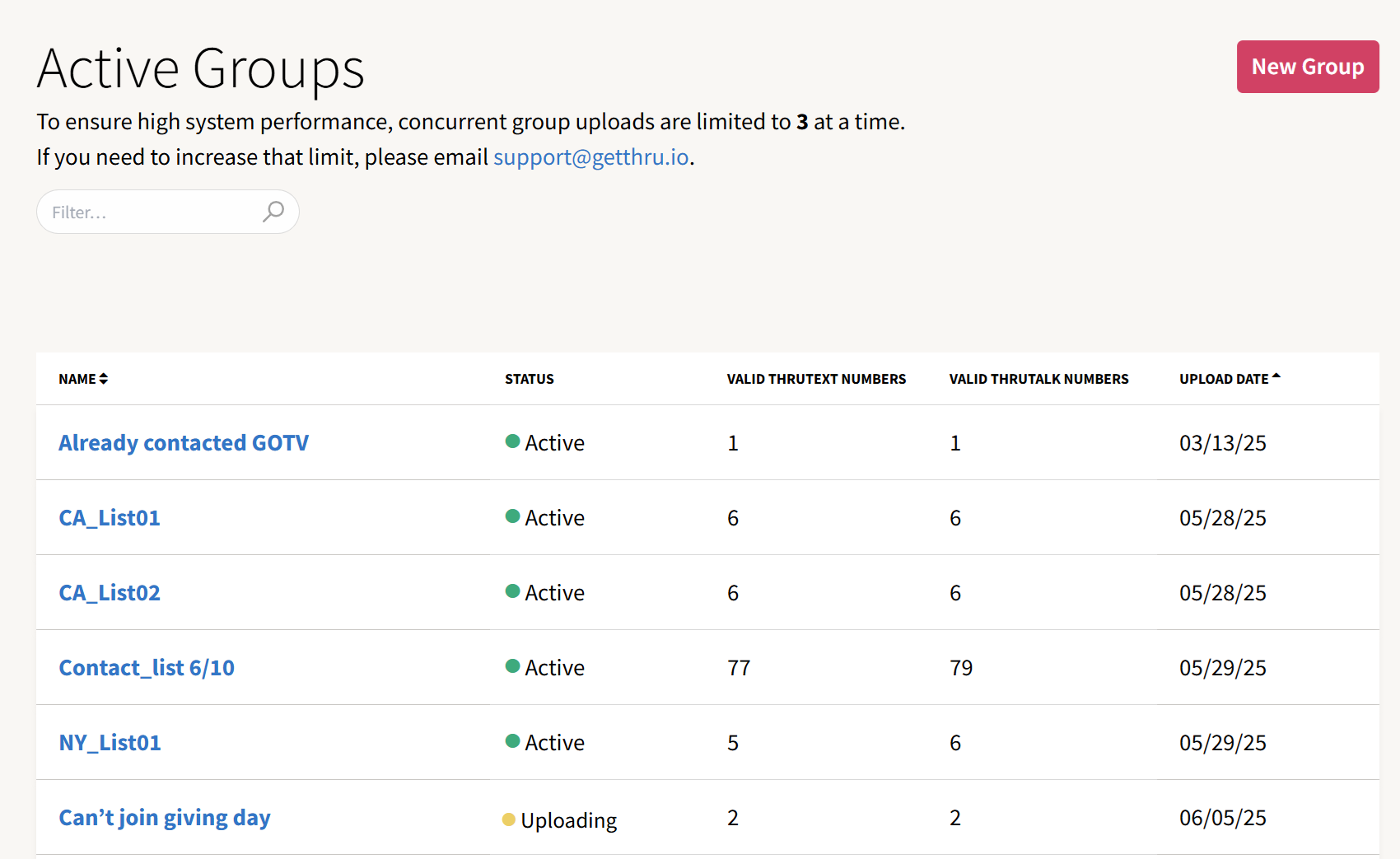
The Group Index shows a list of every active group in your account. Use this list to check upload progress and verify your valid number counts before you use a group in a campaign.
Group Upload Status And Columns
Each row in the Group Index represents one uploaded group. Here’s what each column means:
- Name: The name you gave the group during upload. You can change the name after uploading.
- Status: The group’s upload status. A group can be Uploading or Active. Only Active groups should be added to campaigns so you’re working with final validation results.
- Valid ThruText Numbers: How many valid, textable numbers are in the group.
- Valid ThruTalk Numbers: How many valid, callable numbers are in the group.
- Upload Date: The date the group was uploaded.
Search And Filter Groups
Use the search and filter options on the Active Groups page to narrow the list and find the group you need (for example, by name or by upload status).
Concurrent Group Upload Limits
To support system performance, each account has a limit on how many group uploads can run at the same time.
- If you are below your account’s limit, you can click New Group to start another upload.
- If you are at your account’s limit, you’ll see an error message when you try to upload another group. When that happens, wait for an in-progress upload to finish or email support to request a higher limit.

Next Guides For Learning About Groups
- Uploading a Group: Step‑by‑step wizard to create a group from a CSV.
- Group Details: Review valid/invalid counts, suppressions, and upload errors for a specific group.
- Group Exports: Column‑level explanation of the export CSV for auditing and list clean‑up.