
How to make your VAN list into a Group
Creating a group from a VAN list allows you to quickly use existing voter or campaign data for calling and texting in ThruText or ThruTalk, while ensuring your data will sync with VAN.
This guide walks you through how to sync a VAN list and create a group in GetThru.
TABLE OF CONTENTS
Before Importing Your List
To sync lists between VAN and GetThru, make sure you've completed the initial integration steps:
- Obtain your API key and create a folder with permission to sync to GetThru, following the steps in this guide: VAN Integration Setup - Step 1: Getting a VAN API Key.
- Set up your VAN integration to GetThru following the steps in this guide: VAN Integration Setup - Step 2: Entering the API Key in GetThru.
You’ll also need to ensure the VAN folder containing your lists has permission to sync with GetThru.
Save Your VAN List in your GetThru Folder
You'll have to ensure that
- Your VAN list is a Saved List, not a Saved Search
- The list is saved in a folder that you've granted GetThru access to.
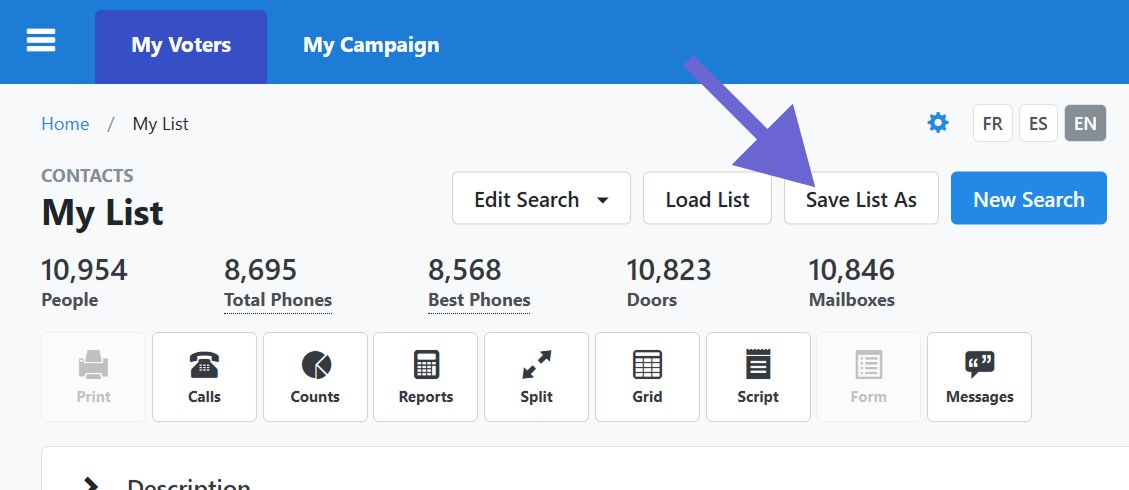
To ensure it's a Saved List, click My List, and then click Save List As:
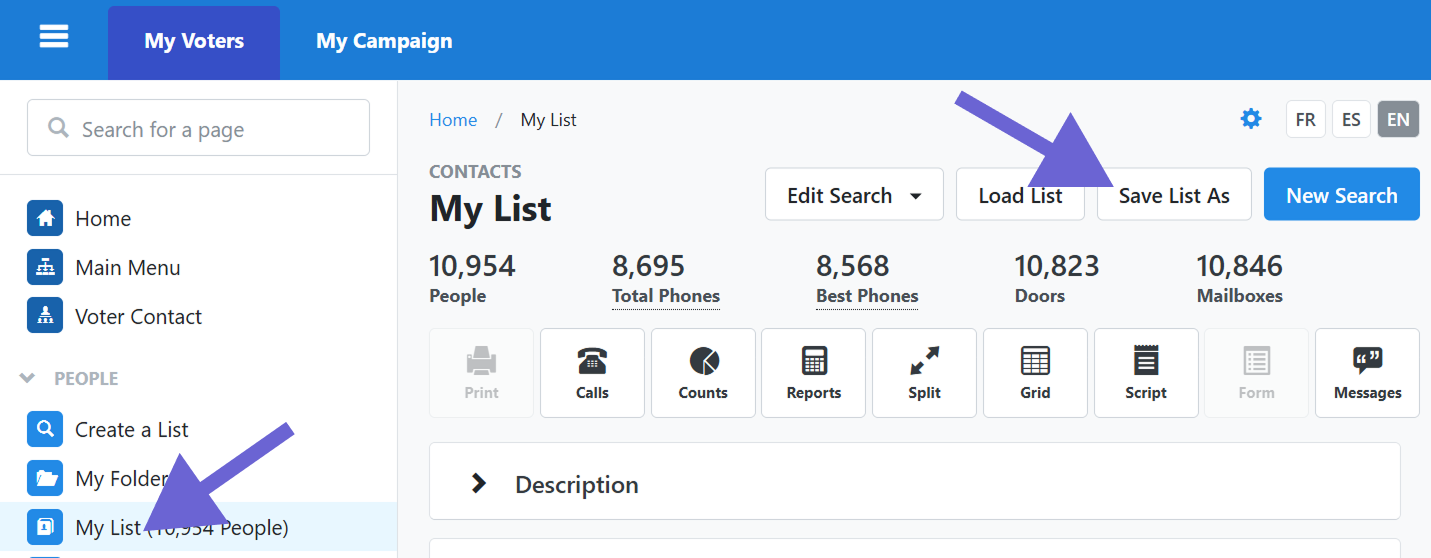
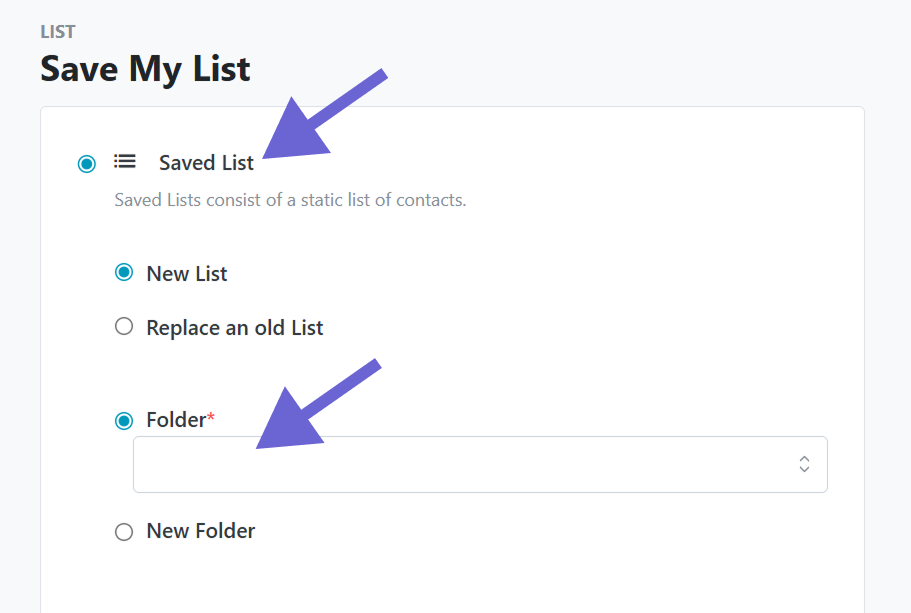
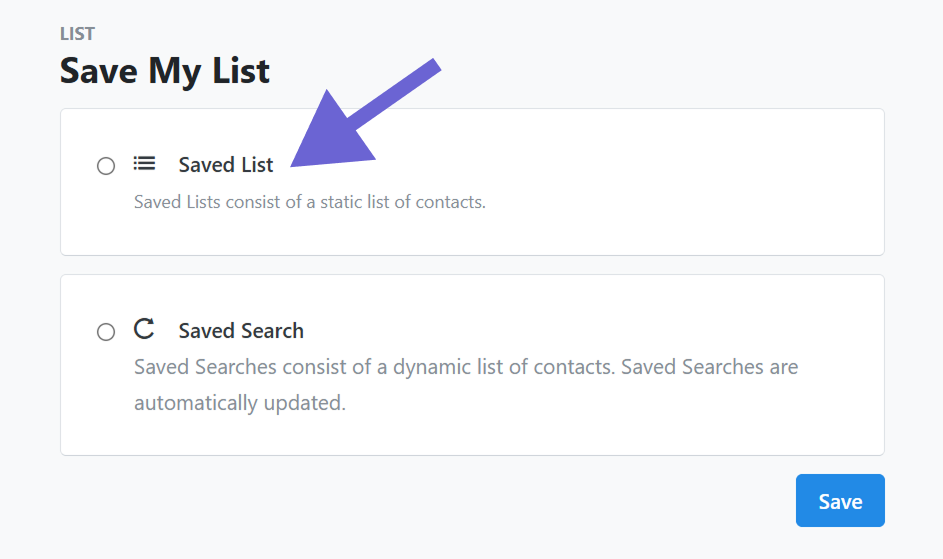
Next, select Saved List, and then select a folder that has permissions to sync with GetThru.
External Contact Lists
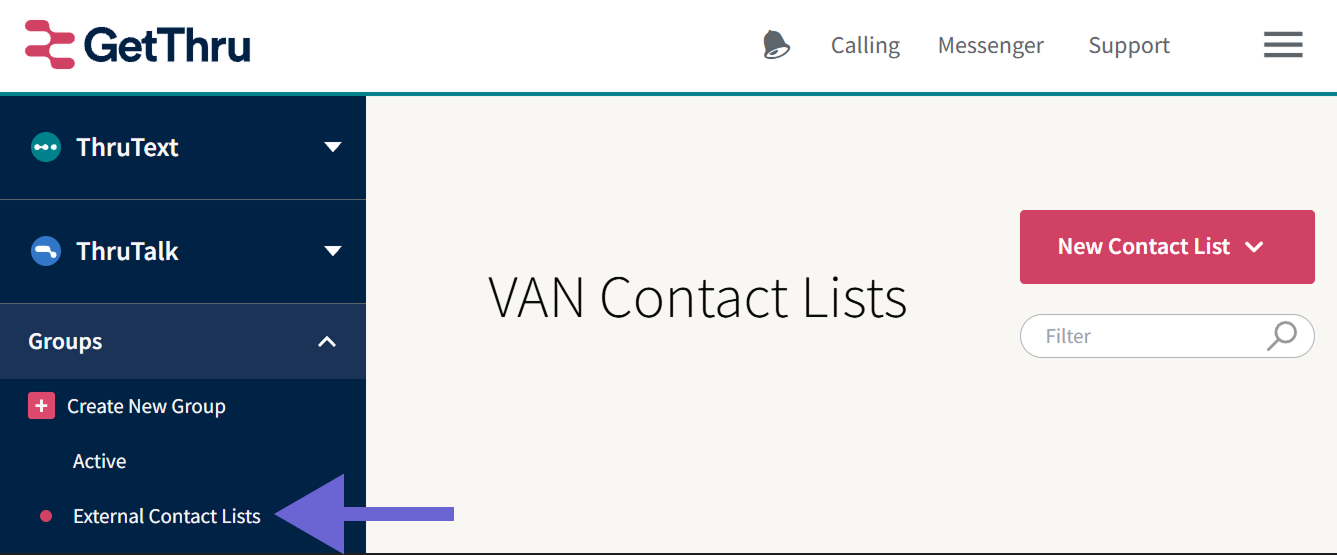
The first step in getting your list from VAN to GetThru is syncing the list with External Contact Lists. To get to this page, expand Groups, and then click External Contact Lists.
There are two ways to sync your VAN list. You can "Pull" or "Push" your list, and the difference lies in where you begin the list sync from.
"Pulling" a VAN List
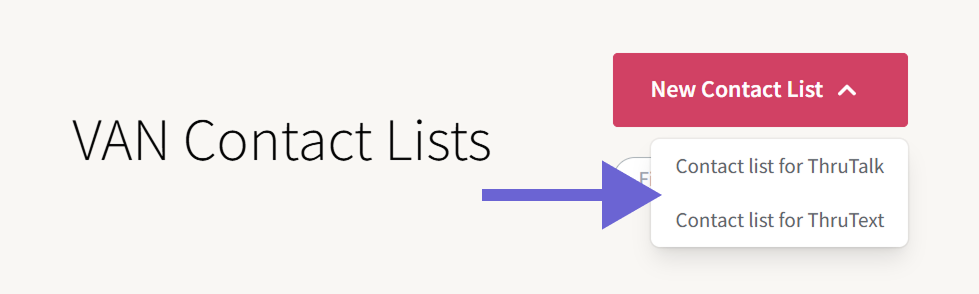
To pull a VAN list, you will start from GetThru. Go to the External Contact Lists page and click New Contact List, and choose your product (ThruText or ThruTalk):
Next, select which side of VAN the list lives in, Voter File or MyCampaign. Choose the list and click Create List.
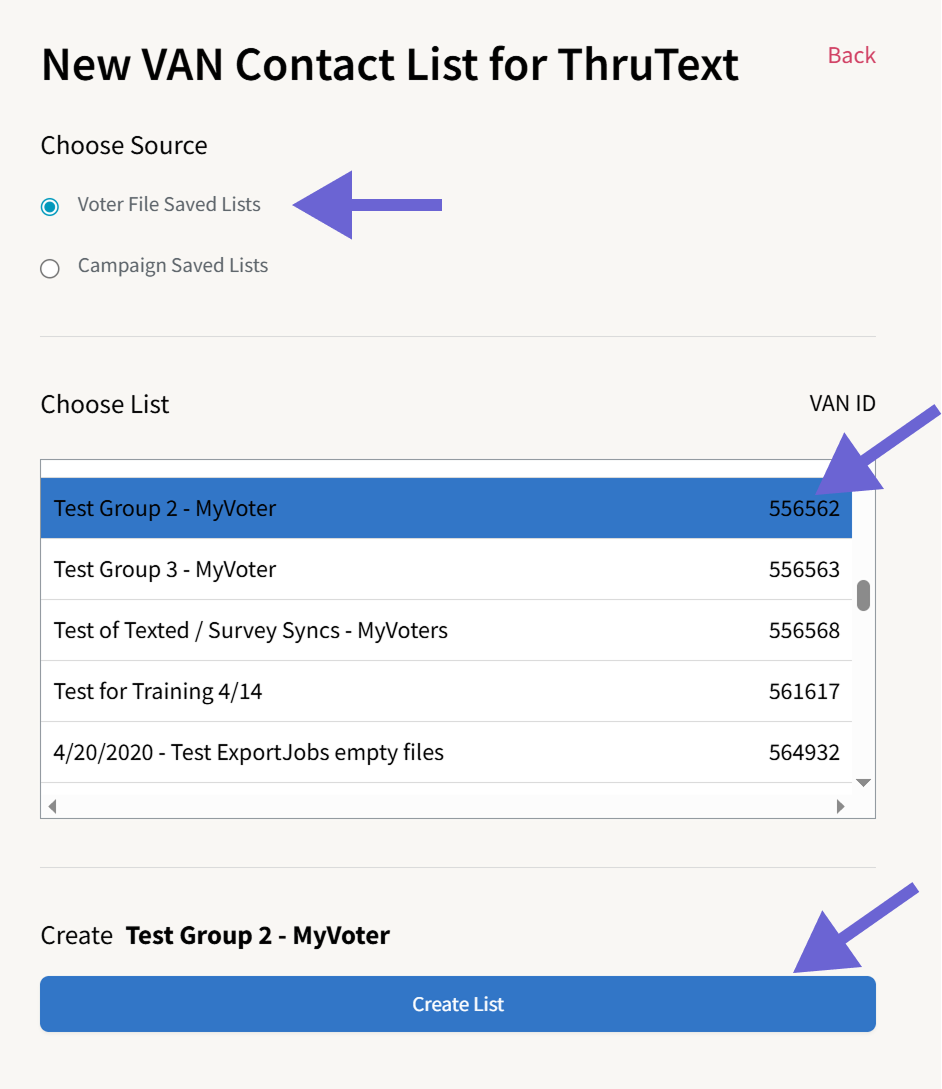
If you don't see your list, check the section below on Troubleshooting List Uploads.
After clicking Create List, you'll go back to the External Contact Lists page. Once the status has updated to Active, the list is ready to be made into a group.
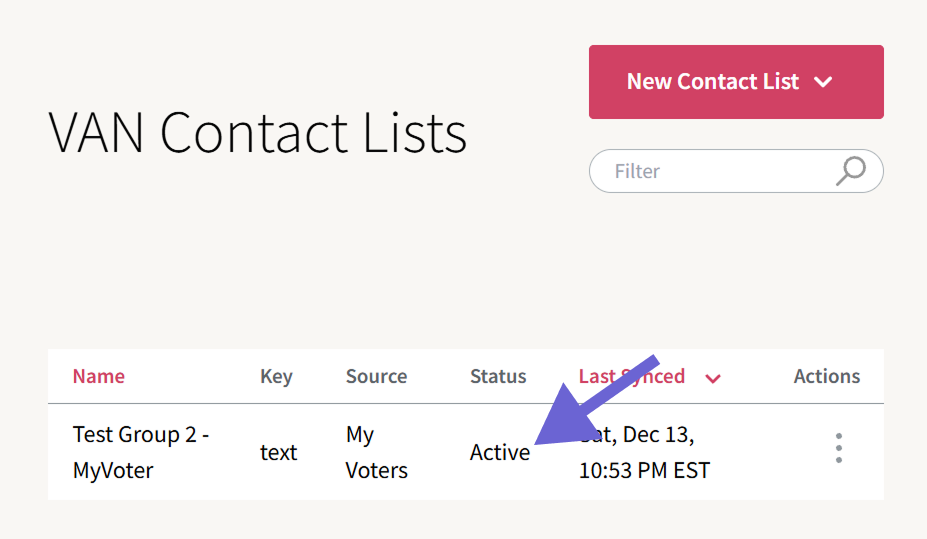
You're now ready to create a group! Go the section Creating a Group from your VAN Contact List, to create a group.
"Pushing" a VAN List
To "Push" a list, you will start the sync process from VAN. After you create your list in VAN, follow these steps.
From My List, click Messages to send your list to GetThru.
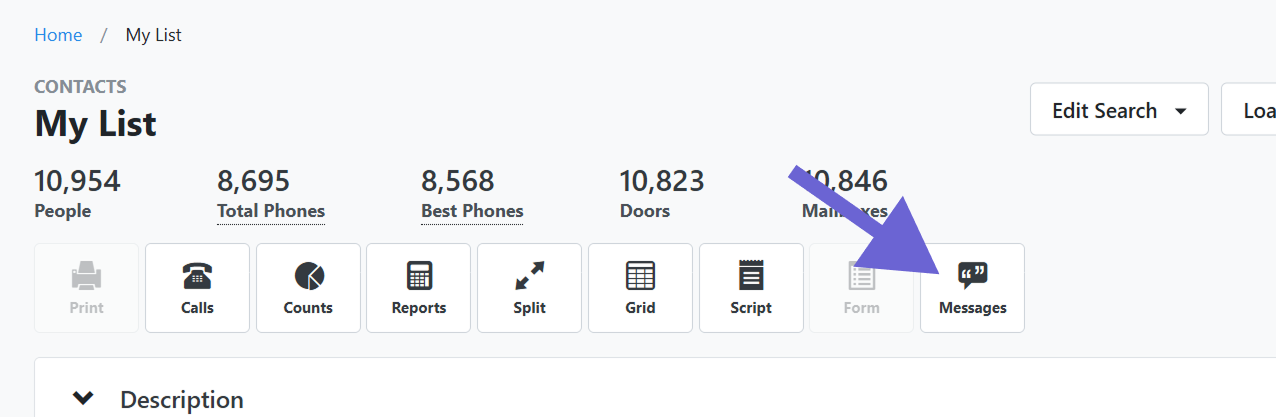
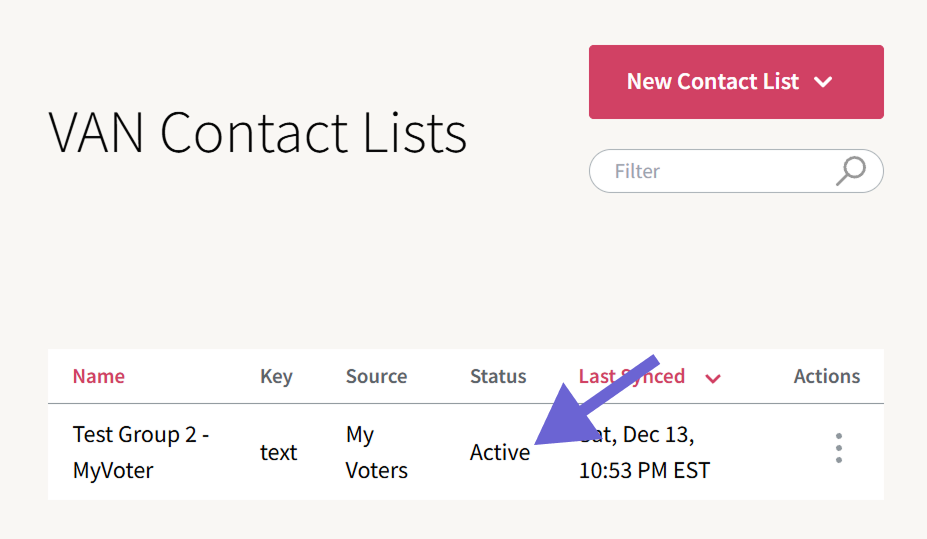
After completing the prompt, you will redirect to www.getthru.app/accounts. Click on your organization and go back to the External Contact Lists page, where you should see the list. Once the status updates to Active, you can go to the next step.
Creating a Group from your VAN Contact List
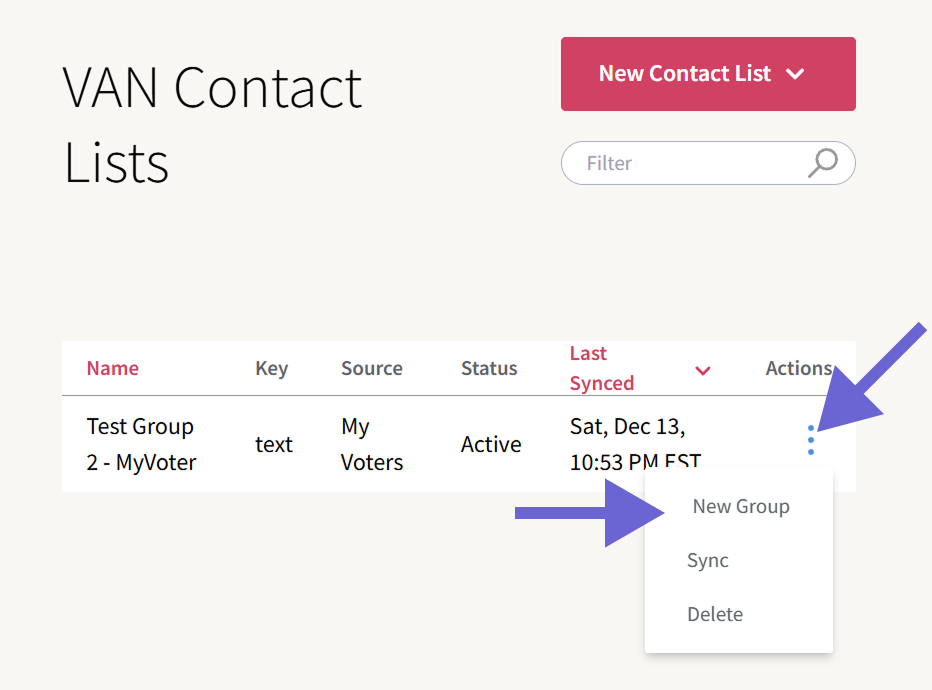
To use your VAN contact list in a text or phone bank, you can create a group from your list. From the External Contact Lists page, click the three vertical dots under Actions to open the flyout menu, and click New Group.
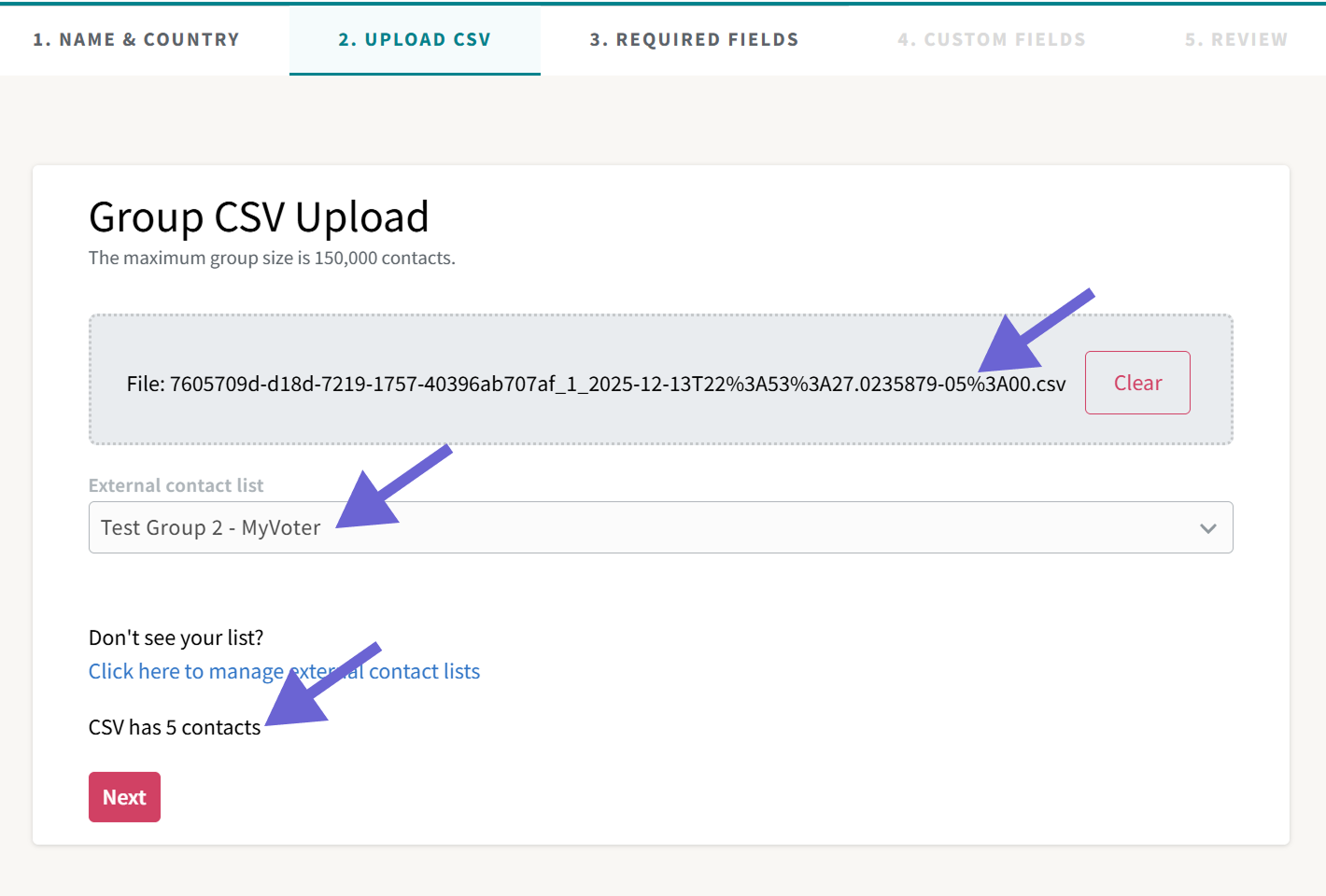
This will take you to Step 2 of the Group Upload Wizard, with your VAN list pre-selected. Wait 1-2 minutes for the file to process. You'll know it's ready once the CSV name appears in the gray box and the contact count appears. Click Next to go to the next step.
Required Fields
In step 3, you'll map columns from your CSV to the fields in GetThru. The system will try to detect which columns to use for these fields based on the names in the headers. While there are only 1 column for first name and last name, VAN lists have several phone columns, such as HomePhone, CellPhone, WorkPhone, and Phone. You'll typically have to choose a different phone column than the first one GetThru finds.
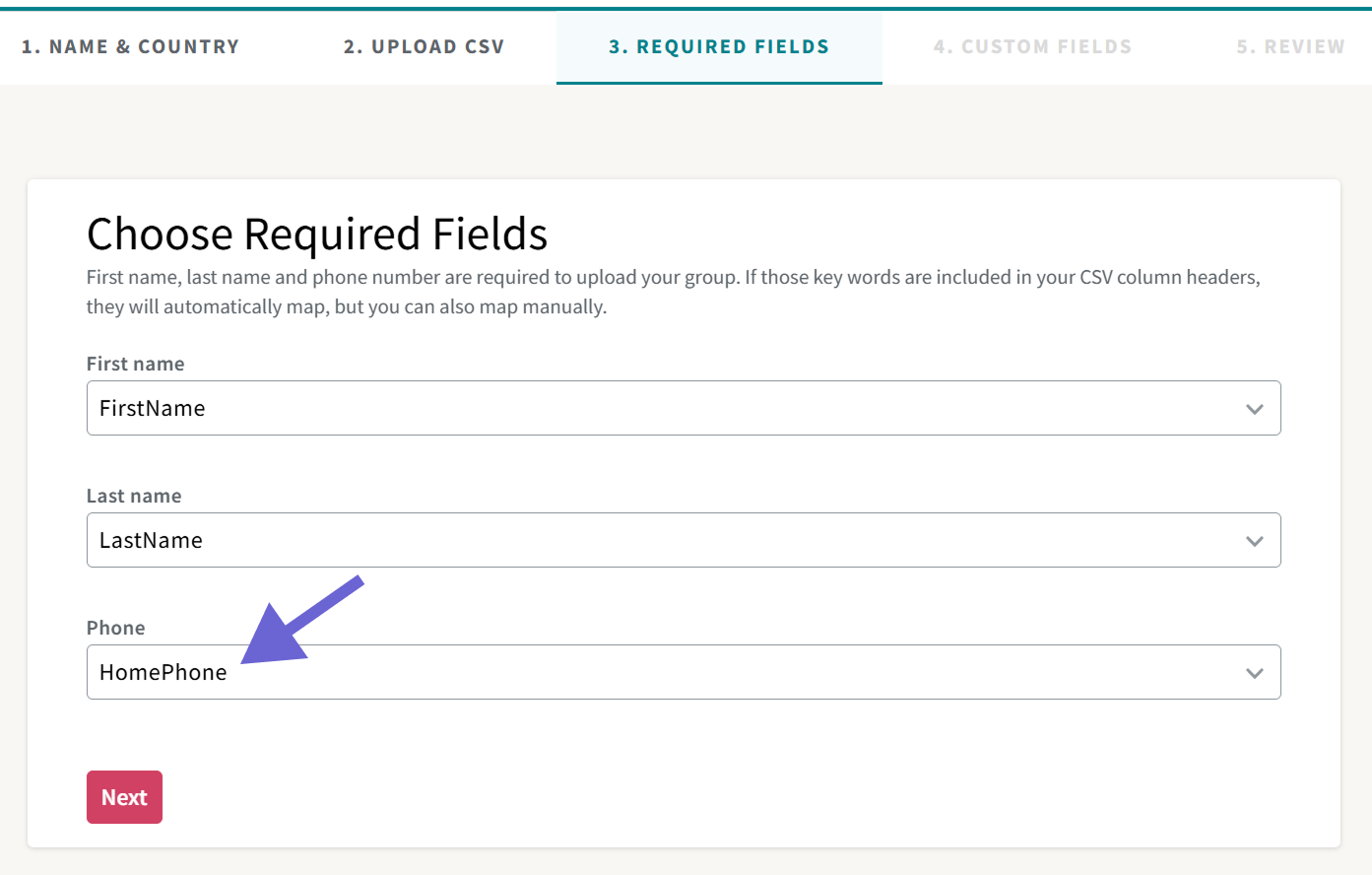
The CellPhone column typically contains the most phone numbers. If you're not sure what to pick, you can create multiple groups from the same VAN list, each with a different column for Phone mapped. You can then compare how many valid contacts are found in each group.
Custom Fields
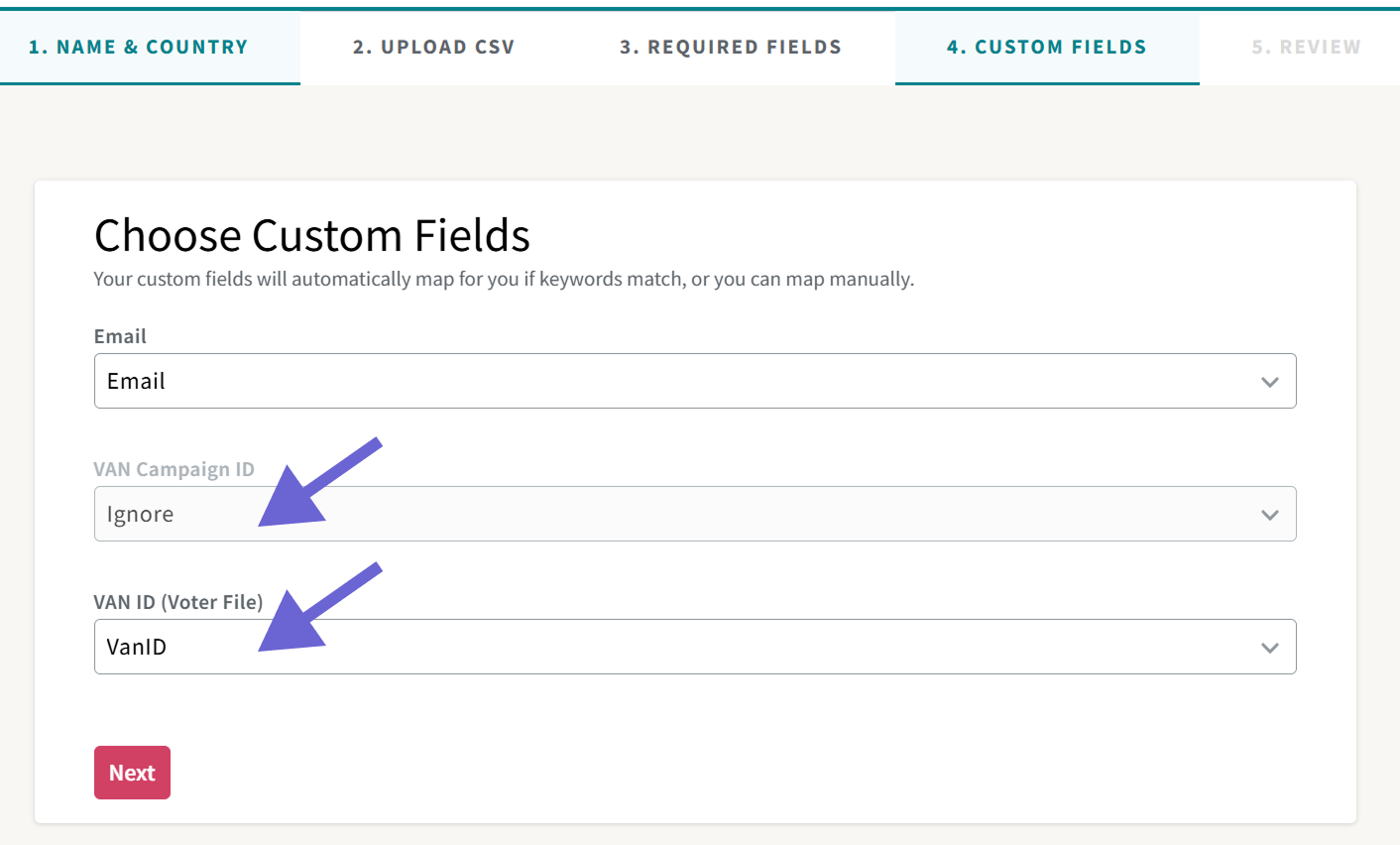
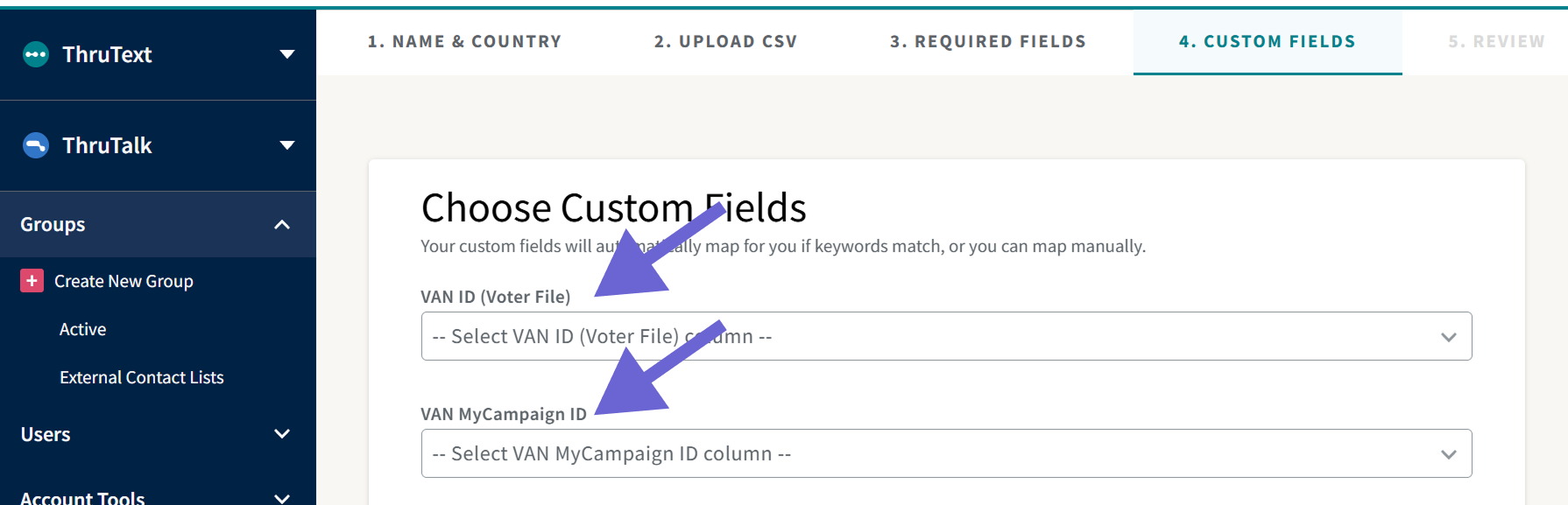
In Step 4, you'll have to ensure that VAN IDs are mapped.
- MyVoter lists must map VAN ID (Voter File).
- MyCampaign lists must map VAN Campaign ID.
These fields will auto-populate when creating a group from an External Contact List. Click Next to move to the Review Step.
Review
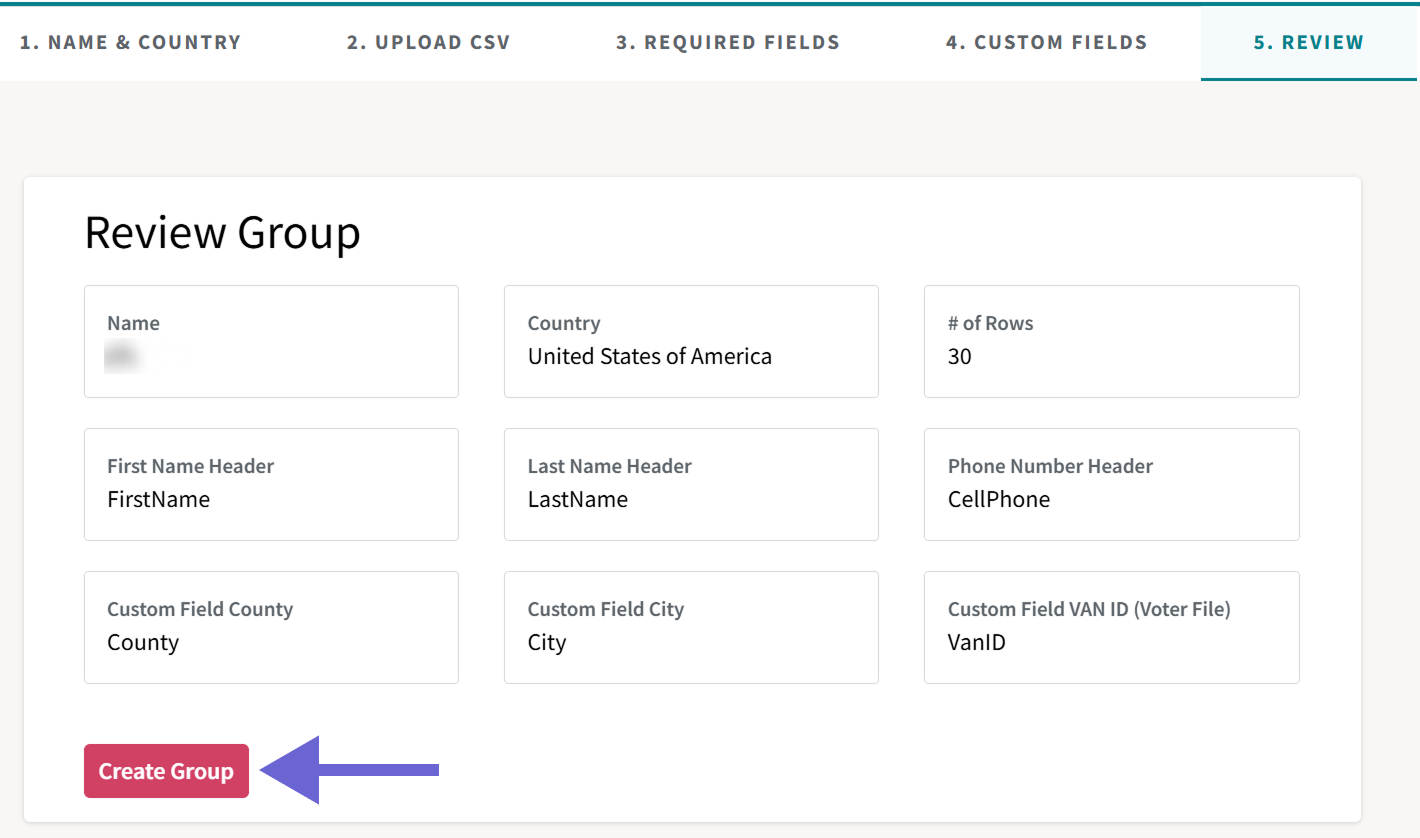
On the final step, review the information and click Create Group when ready.
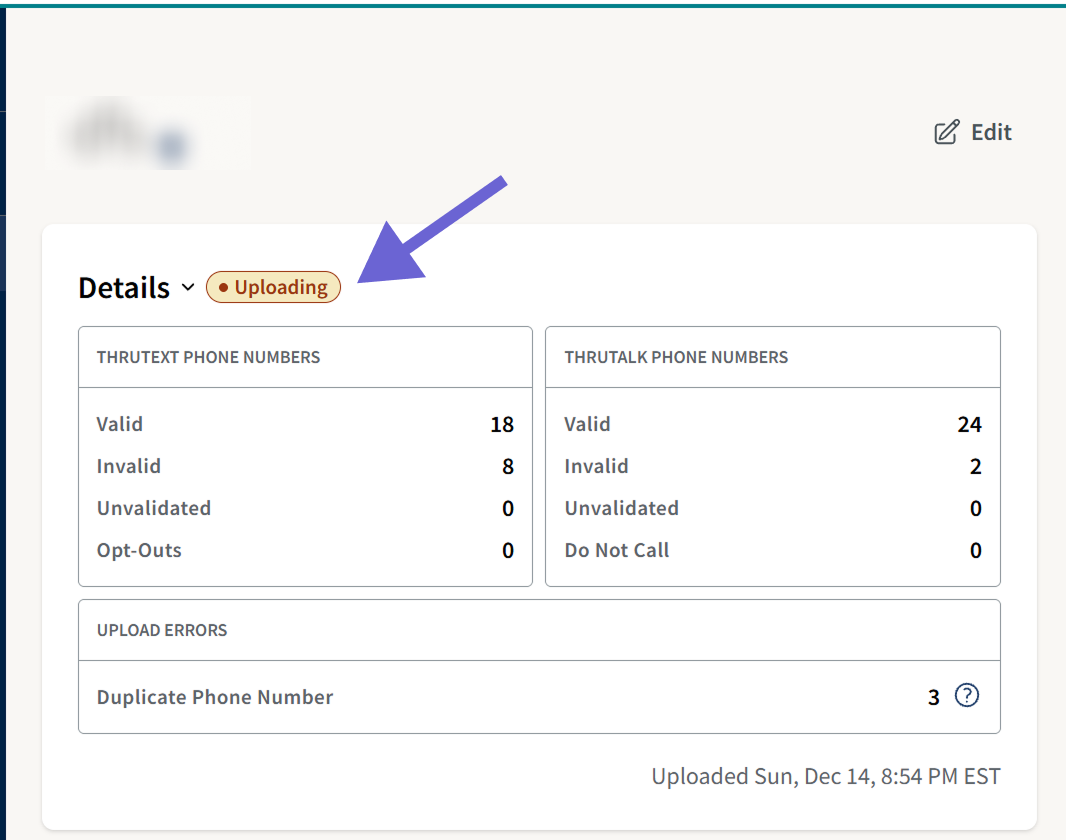
After you click Create Group, you'll go to the Group Details page. Here you'll see the group upload status. Once the status changes from Uploading to Active, the group will be ready to be used in a campaign.
Troubleshooting List Uploads
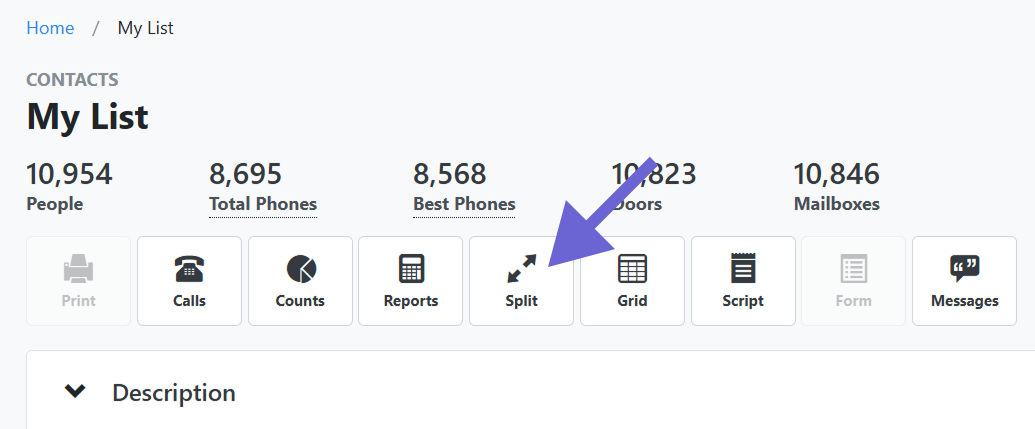
- Upload Failed: If your group fails to upload, it could be due to the file size of the CSV. GetThru can handle files up to 45 MB. If your upload fails, try dividing your list using VAN's Split feature.
- No Lists Appearing: If you've tried the above and you can't see your list in External Contact Lists, check the following
- Saved Search: The API can't access a Saved Search, so make sure that you save your list as a Saved List.
- Folder Permissions: Check that your folder has permissions to be accessed by the API
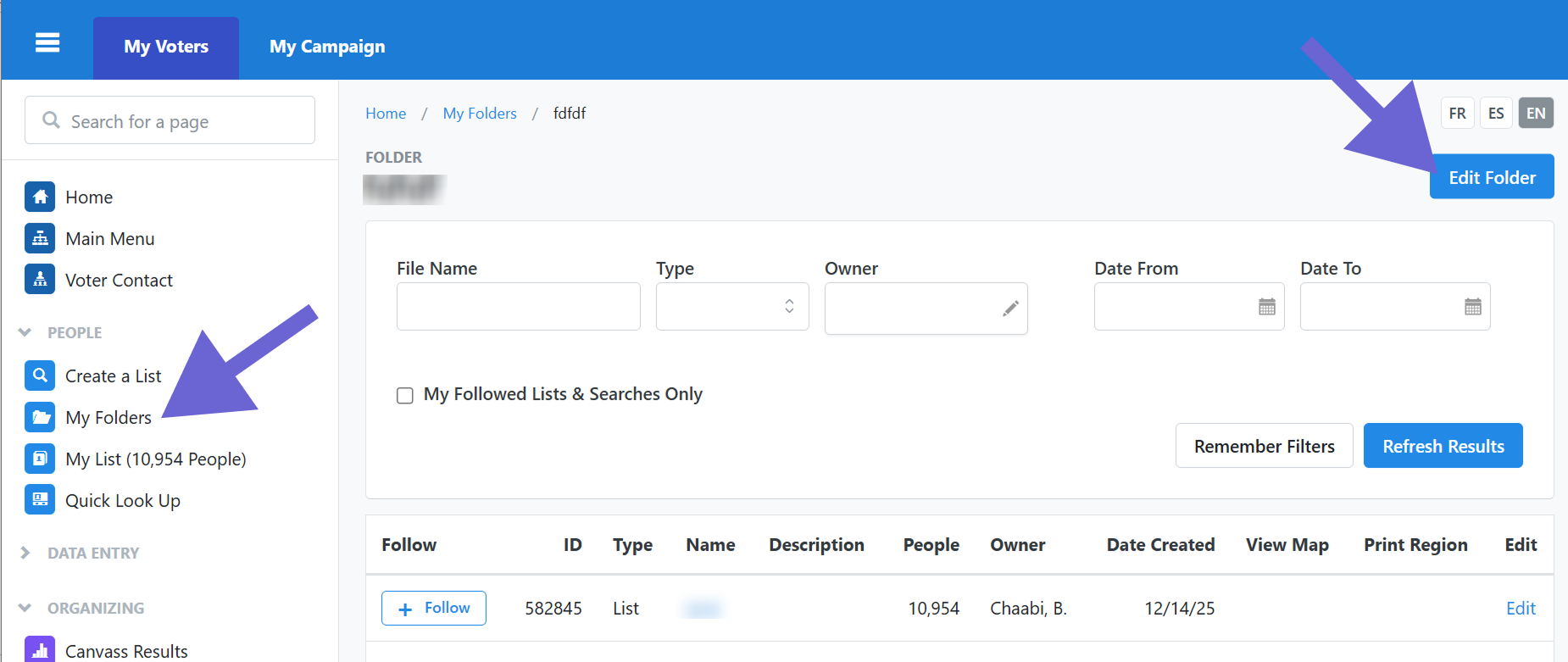
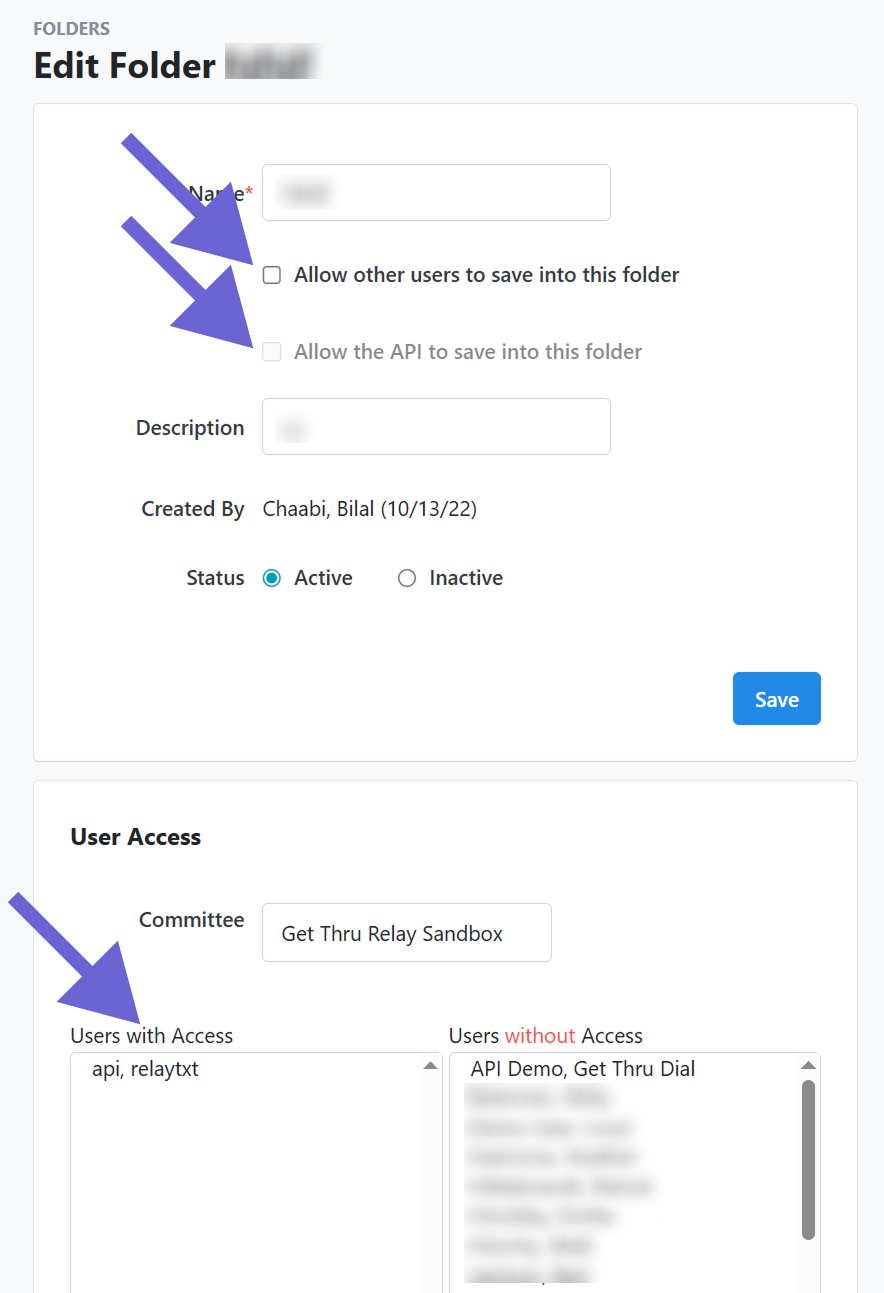
- Can't Pull your List?: Successfully pushing a list from VAN to GetThru can configure your VAN folder with the correct permissions for the API. Try pushing a list, and then pulling them.
Some ThruTalk integrations won't have access to Push a list. If you only have a ThruTalk integration, create a ThruText integration with the same API key, and then push a list from VAN. This should allow you to see more lists when you Pull a list.
- Saved Search: The API can't access a Saved Search, so make sure that you save your list as a Saved List.
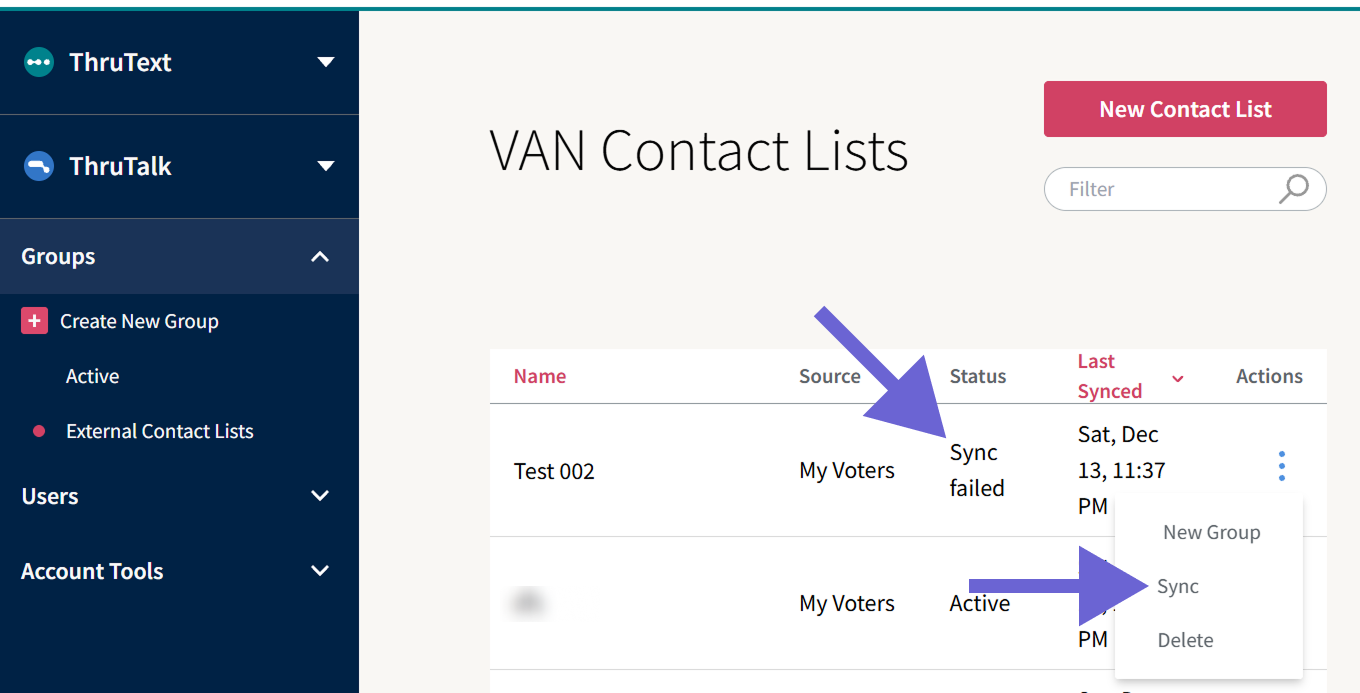
- Sync Failed: If the status of your list is Sync Failed, try syncing your list again. Click the three vertical dots under Actions, and click Sync from the flyout menu.
Additional Information About VAN Lists
- VAN Custom Fields: VAN has an extensive selection of custom data fields available to their clients, varying from state to state. However, the API doesn't have access to all of these fields. To use these fields, upload your VAN list manually.
- First, create the custom fields you want to map. Follow the instructions in this guide: Custom Fields - Personalization and Integrations.
- Next, export the list from VAN. VAN has a helpful guide, which you can access if you're logged in: How do I Export a List?.
- Once you have your list as a CSV, click Create New Group in GetThru, and upload the CSV.
- Make sure that you map VAN IDs, in addition to the VAN custom fields, or the VAN Integration may not work as expected.
- Inactive Voter Records: As of April 5, 2024, API keys include inactive voters. To exclude inactive voters as before, you must manually adjust the list filter. Specifically, deselect the Voter Status Inactive option in your filter settings.
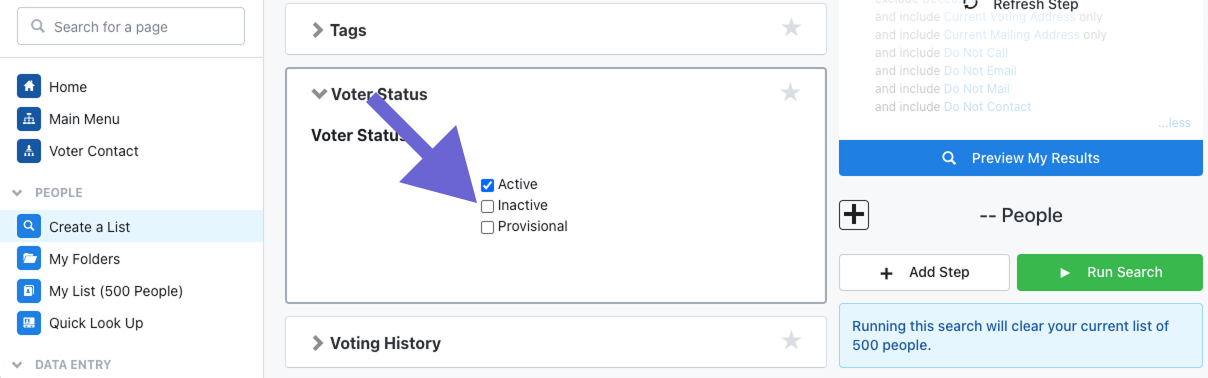 In some states, this section is called "Voter Status and Voter Registration". "Inactive" voters can include anyone with a status not marked Active or Registered Active, which can also vary from state to state. These voter status options are also dependent on individual user permissions. If a VAN user cannot access these statutes in VAN, then nothing will change for them as those records will not be included in the saved list shared with GetThru.