
Mapping to MyVoter and MyCampaign in the Same Campaign
If your organization uses VAN and wants to use both MyVoter and MyCampaign data in a single ThruText campaign, you’ll need to take a few extra steps. VAN typically syncs to only one committee side at a time, so syncing both requires manually preparing your data to include identifiers from each side.
This guide walks you through how to prepare your data so you can access surveys, activist codes, events, and canvass results from both MyVoter and MyCampaign during campaign setup.
TABLE OF CONTENTS
- Before Getting Started
- Why Syncing to Both Sides Requires Manual Upload
- How to Export a List from VAN
- How to Create a Group in ThruText with Dual Mapping
- Using the Group During Campaign Creation
Before Getting Started
- VAN Integration: For your VAN data to be able to sync, you'll need to have set up a VAN Integration in your account first. Please review GetThru VAN Integration Overview for those steps.
- External Contact List: If you only want to sync to one committee side, you can do so following the steps in our guide Creating a Group from a VAN Imported List.
- Limitations: Syncing to both MyVoter and MyCampaign in one campaign is a ThruText feature, and the dual-sync process is not currently supported for syncing to both committee sides in a ThruTalk campaign.
Why Syncing to Both Sides Requires Manual Upload
When you import a list to ThruText using the VAN integration, it can only pull identifiers from the side where the list was created, either MyVoters or MyCampaign, but not both. ThruText relies on these identifiers to sync survey responses and data back to VAN.
To access surveys and other synced data from both sides, you need to manually export your list from VAN, making sure to include both the VAN ID (from MyVoter) and the VAN Campaign ID (from MyCampaign).
How to Export a List from VAN
You'll need to export your intended list from your VAN committee.
- Navigate to Create a List: After creating a Saved List in VAN, go to the list page and click Export to open the export menu.
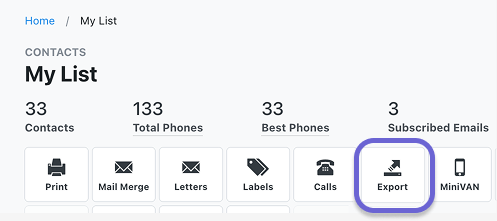
- Select Export Format: In the drop-down menu, select your preferred Export Format. Choose a format that allows you to include VAN ID and VAN Campaign ID. A description of each format appears beneath the menu to help guide your choice.
- Customize Your Export: To control which data fields appear in the export, click Customize Export. Under Fields to Export, search for and include:
- VAN ID
- VAN Campaign ID
- Export: Once you're ready, click Export As and choose a format. Your export file will appear under My Export Files on the VAN home screen, listed on the left-hand side under View Your Dashboard.
How to Create a Group in ThruText with Dual Mapping
After downloading your list:
- Create a new Group within GetThru. Please review our guide Uploading a Group for more details.
- During the upload process, at the custom fields step, map both VAN IDs:
- VAN ID to its corresponding custom field VAN ID (Voter File) - code: van_id
- VAN Campaign ID to its corresponding custom field VAN Campaign ID - code: van_campaign_id
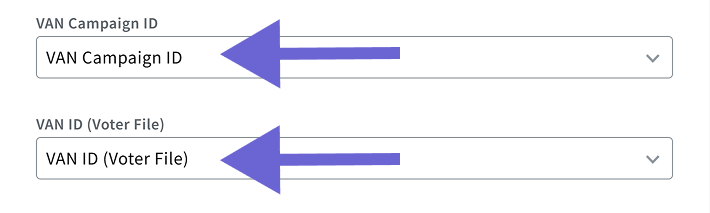
This dual mapping allows ThruText to recognize and sync with both committee sides.
Using the Group During Campaign Creation
When setting up your campaign, select the group you created with both MyVoter and MyCampaign identifiers. In the Surveys section of the Campaign Creation Wizard, you'll now be able to:
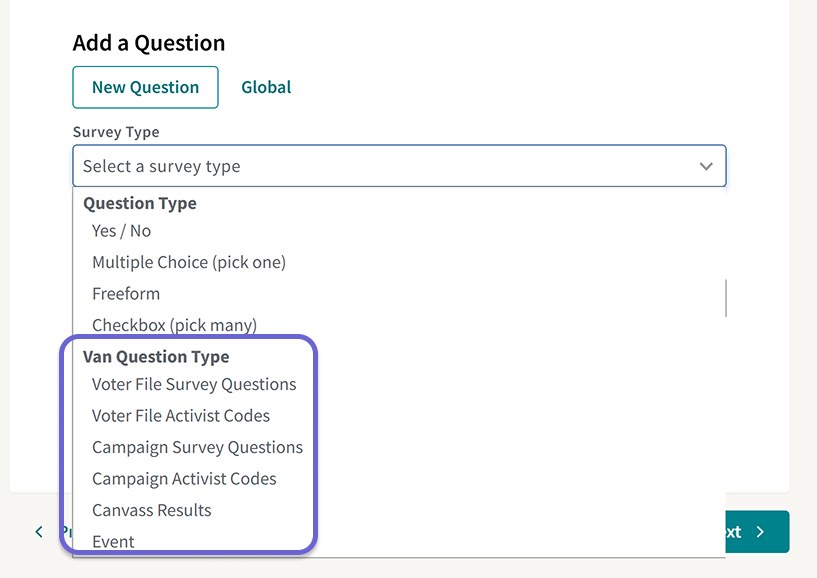
- For the MyVoters side, import survey questions, activist codes, and canvass results
- For the MyCampaign side, import survey questions, activist codes, and events
Once everything is configured, you can launch your campaign and begin messaging.
If you have questions about this process, please email us at support@getthru.io for assistance.