
Voicemail Page
The Voicemail page helps you stay connected with contacts who call back after being contacted in ThruTalk or ThruText. You can listen to voicemails they’ve left and create a custom greeting that plays when they call your texting or calling number. Custom greetings allow you to share important information, or clearly identify your organization even when no one is available to answer.
This guide will walk you through how to view voicemails, set up a custom greeting, and follow best practices to ensure a smooth experience for your contacts.
TABLE OF CONTENTS
Navigate to the Voicemail Page
To access the Voicemail page, expand the Account Tools menu in the sidebar navigation menu and click on Voicemail.
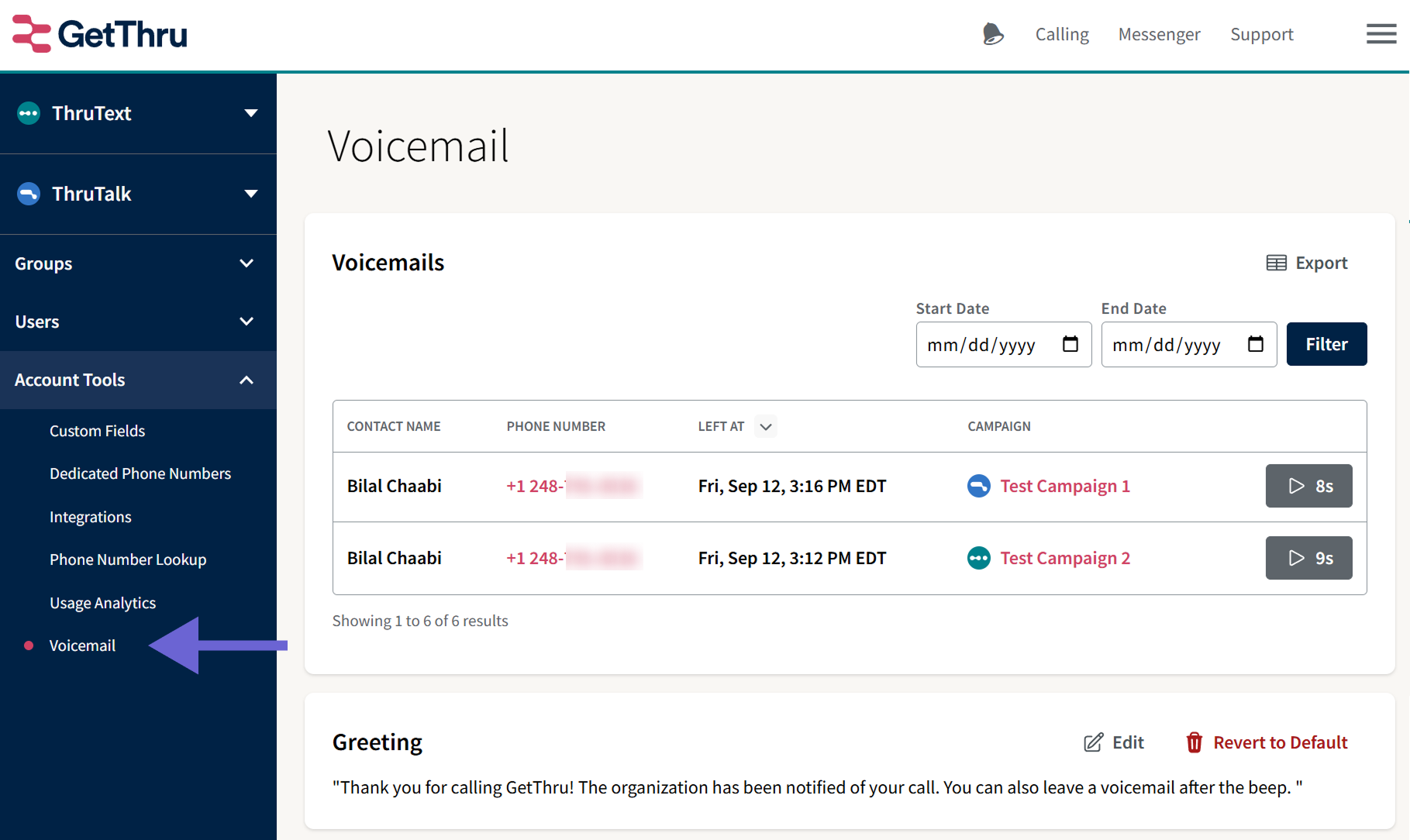
Voicemails
In the Voicemails section, you’ll see a table of voicemail messages left by your contacts. These messages are from contacts who called back after being contacted through ThruTalk or ThruText.
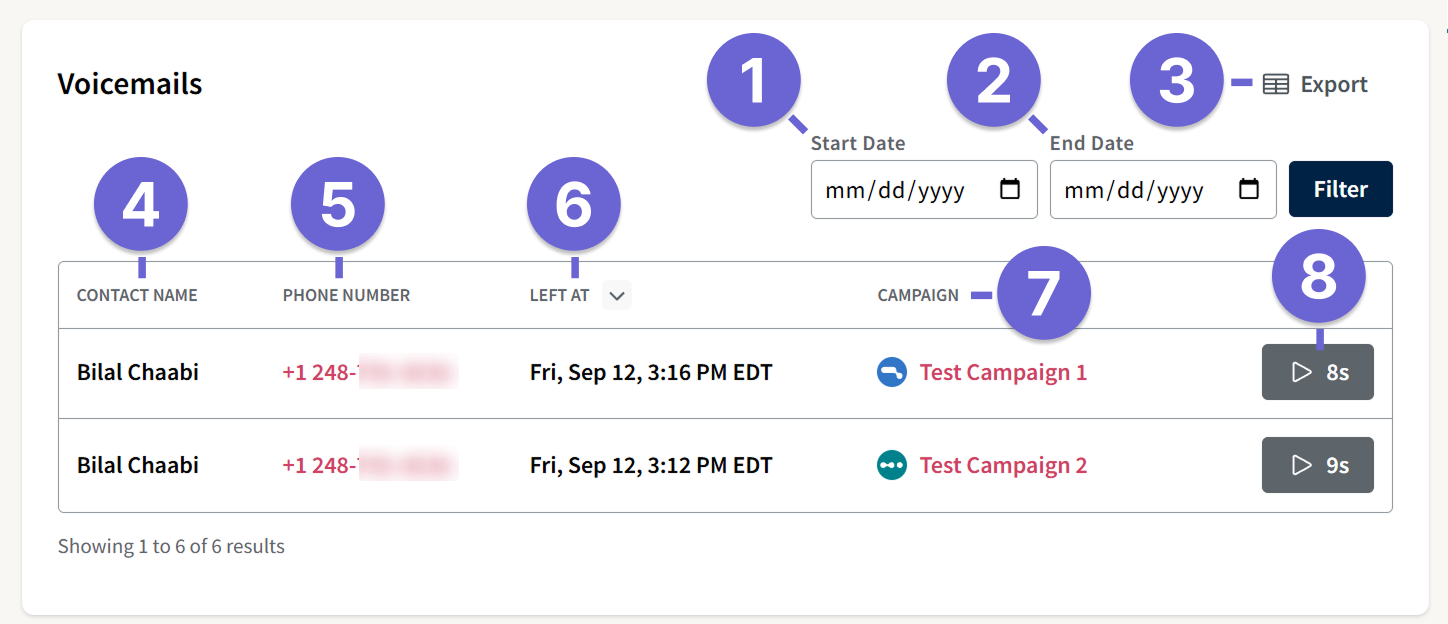
- Start Date: Select a start date to only show voicemails received after this date.
- End Date: Select an end date to only show voicemails received before this date.
- Exports Page: Click Exports Page to access the Account-Level Universal exports page where you can download a CSV file of voicemails between your selected start and end dates. Please check out our Account-Level Exports guide for more details.
- Contact Name: Shows the contact’s name as it appears in the group they were part of. Contact names may vary for the same number between groups.
- Phone Number: Clicking the contact’s number opens the Phone Number Lookup tool, where you can view opt outs, DNC status, groups, campaigns, and event history. Read more in our guide: Contact Phone Number Lookup.
- Left At: The date and time when the voicemail was received in your local time zone.
- Campaign: Displays the campaign the contact responded to. Blue icons indicate ThruTalk campaigns; green icons indicate ThruText campaigns.
- Play: Click the play button to listen to the voicemail. Playback controls include volume, download, and speed adjustment options.
Greeting
In the Greeting section, you can customize the voicemail message that plays when a contact calls the number used in your ThruTalk or ThruText campaigns.
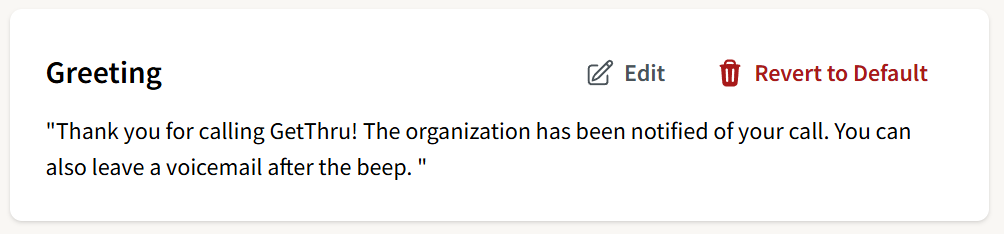
To create your own message, click Edit. Once saved, you can click Revert to Default anytime to go back to the original system message.
To ensure the automated greeting pronounces names or phrases correctly, write them phonetically. For example, the name Nguyen is often mispronounced by automated systems. Write it like this to ensure the correct pronunciation: "Hi, you've reached Representative Win for Congress. Please leave a voicemail after the beep and we will get back to you soon! Have a great day!"