
Conversations Overview and Reassignment
The Conversations Overview page helps admins review and manage how conversations are assigned across a campaign. This guide walks through how to reassign conversations in bulk to a single or multiple senders, review conversation status stats, and oversee how senders are progressing through assignments.
Whether you're preparing for a texting shift, cleaning up after a campaign, or redistributing messages during a live shift, these overview reassignment tools help you stay flexible and efficient.
TABLE OF CONTENTS
Before You Start
You can only reassign conversations to users who are already added to the campaign. To add or remove senders, go to the Senders tab in your active campaign. Check out our guide ThruText Campaign Summary Page - Section: Senders Tab for more details on this process.
For a video walk-through on the reassignment process, please check out our How to Reassign Conversations tutorial.
Conversation Overview
On the Conversations tab, you can see an overview count of all conversation statuses and make reassign changes in bulk across your campaign.
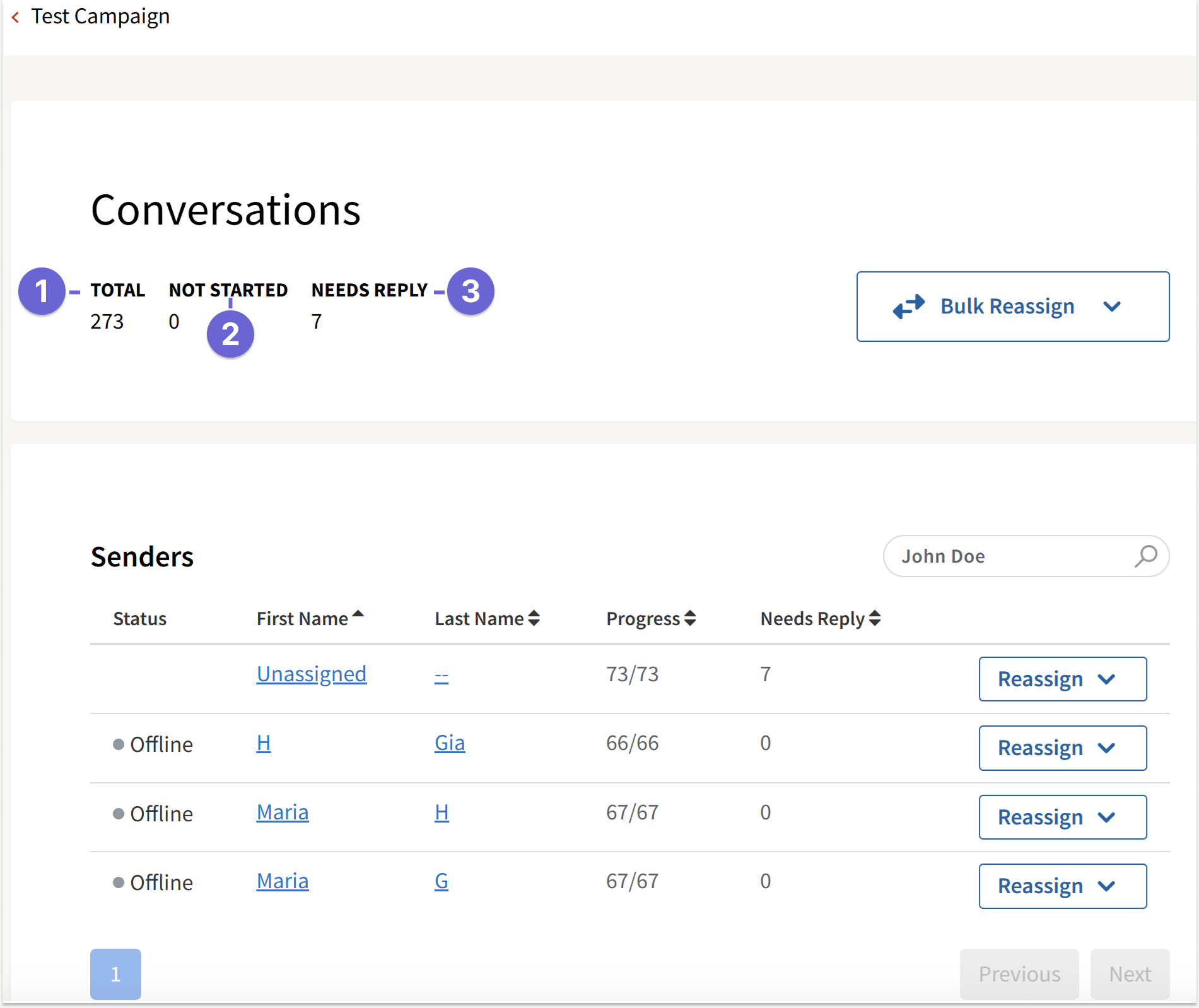
Overview Stats
- Total: The total conversations within this campaign, which is comprised of the target contact count.
- Not Started: The number of conversations that have not had an initial message sent out.
- Needs Reply: The number of conversations where the contact sent the last reply and are awaiting a response from the sender.
Conversation Reassign Stats
When handling conversation reassignment, you'll have three conversation statuses to reassign based on.
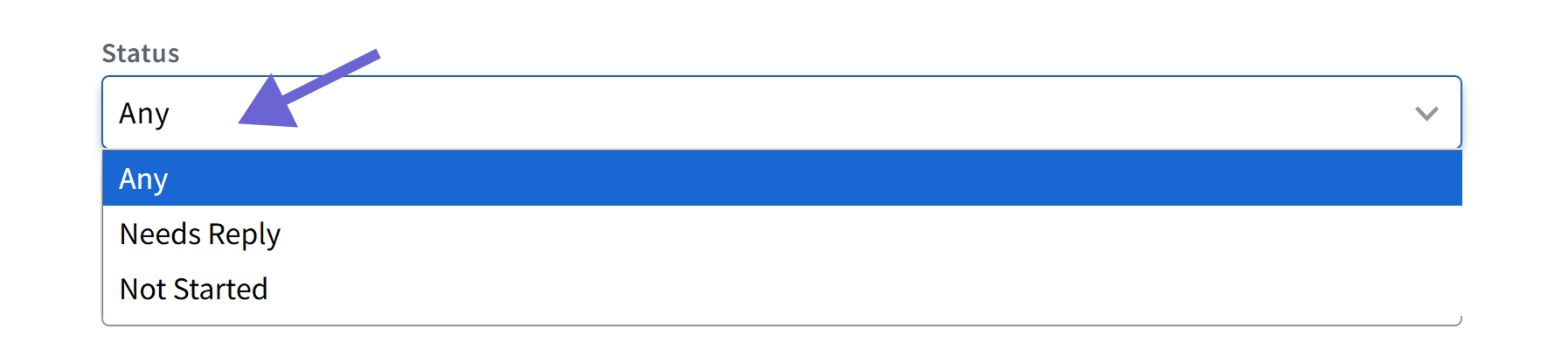
- Any: Moves all conversations, regardless of reply status.
- Needs Reply: Moves only conversations that have a response from the contact and are awaiting a reply.
- Not Started: Moves only conversations where the initial message hasn’t been sent.
Bulk Reassign
Bulk reassignments are done from the Conversations tab of your campaign. Thions are useful for making large-scale changes across all senders at once. Click the Bulk Reassign drop-down to choose one of the following actions:
- Bulk Unassign All: This moves all conversations, regardless of status, back to Unassigned. Use this if you want to start fresh or allow senders to claim messages using Self Assign.
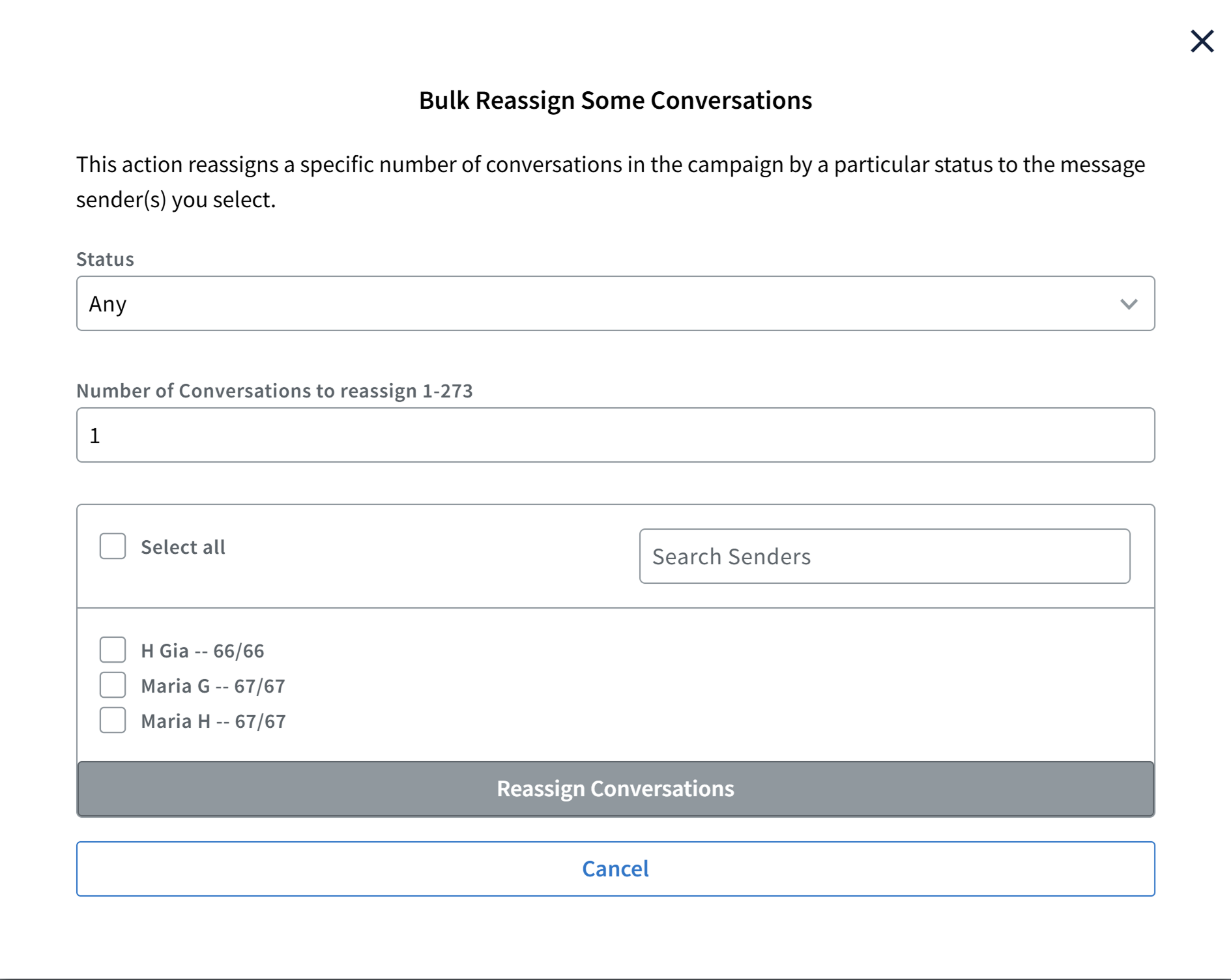
- Bulk Reassign Some: This option lets you select a specified number of conversations to reassign to other senders.
- Bulk Reassign All: This moves all conversations of a selected status to the users you choose.
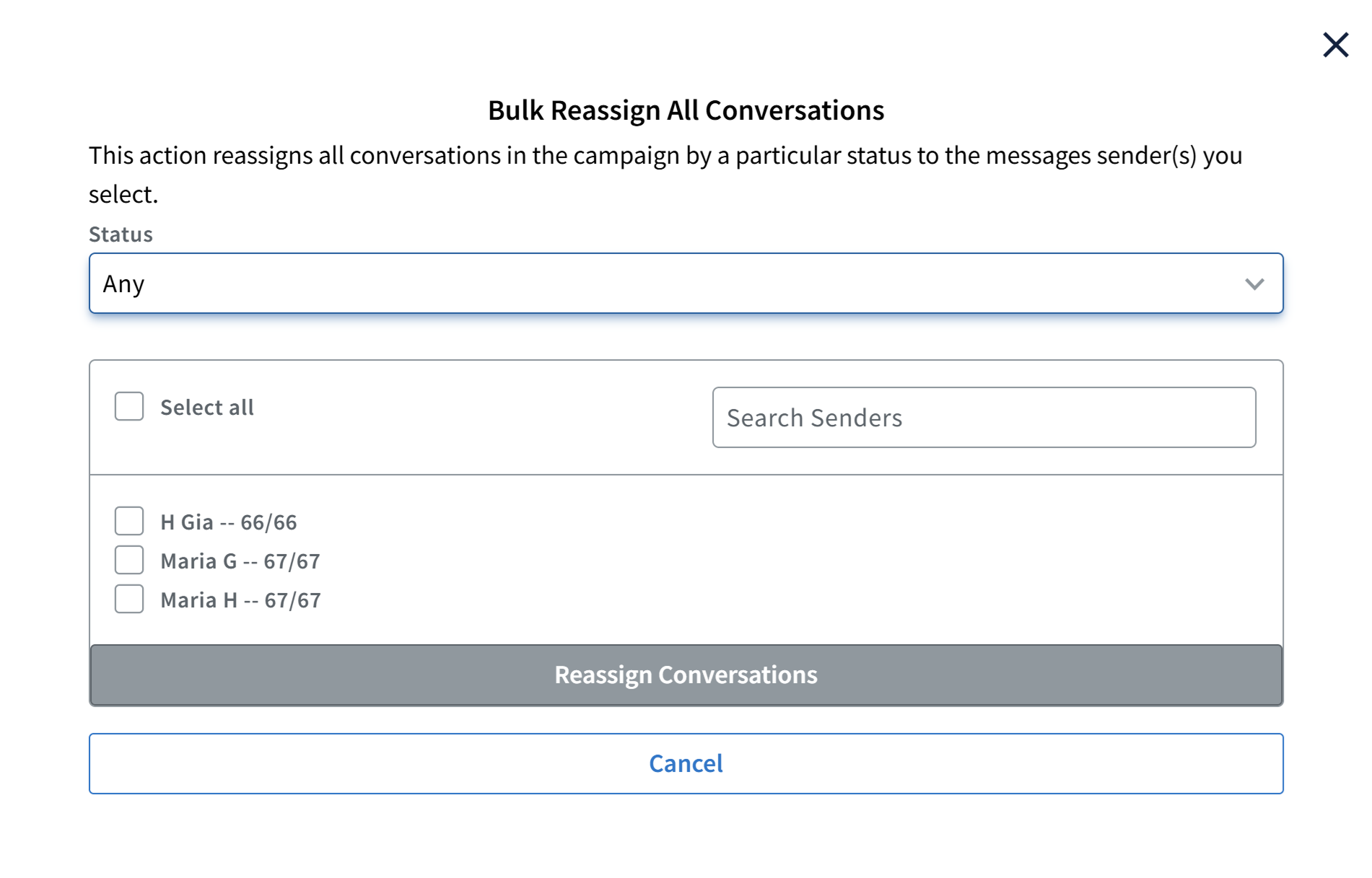
The options of Bulk Reassign Some and Bulk Reassign All include the following selection options:
- Choose the conversation status of Not Started, Needs Reply, or Any.
- Assign conversations to one or more senders.
- Choose Select All to select all senders, choose the checkbox next to a sender name for a single selection, or find a sender name via the search field.
Conversations are divided evenly among the selected senders based on the number to reassign. Example: If you reassign 6 conversations to two senders, each gets 3. The rest remain as originally assigned.
Campaign Status
The conversation tab will include a listing of the status for certain campaigns states.
- Paused or closed campaigns: Campaigns will have a Campaign is currently closed status.
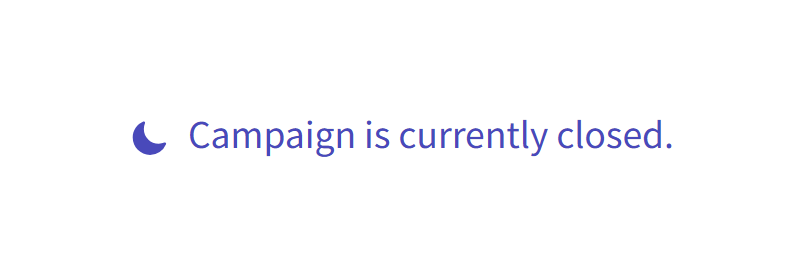
- Active campaigns with an IMSW that has passed: Initial message sending window has passed.

Senders Overview
On the Senders tab, you can see which senders are online and in the Messenger. You can use a sender's activity to help determine how to reassign conversations.
Sender Activity
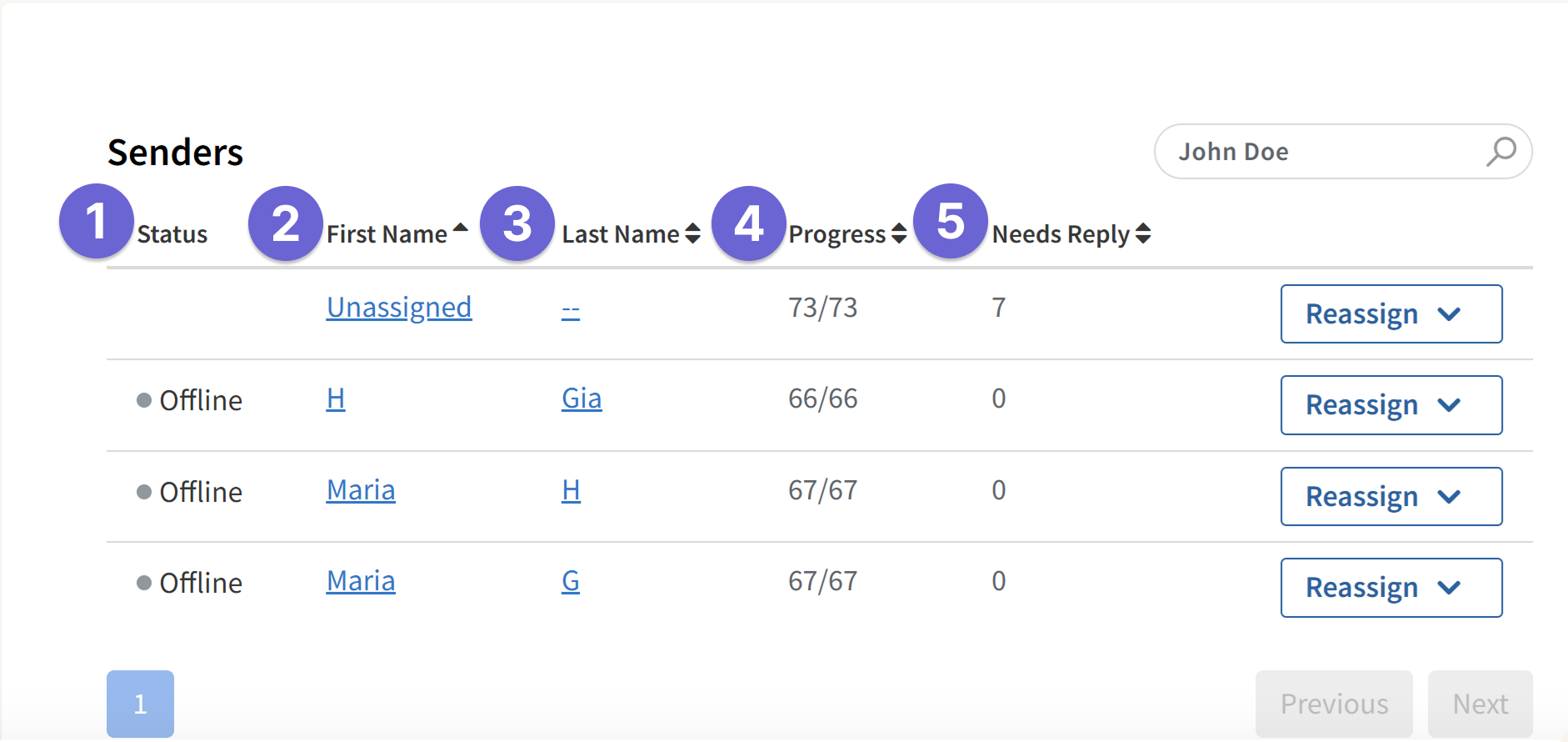
- Status: The sender's status of online or offline.
- First Name: The sender's first name, which will display in messages if the %SenderFirstName% variable is used.
- Last Name: The sender's last name, which will display in messages if the %SenderLastName% variable is used.
- Progress: The progress that the sender has made through their assigned conversations.
- Needs Reply: The number of conversations awaiting a response from the sender.
Individual Sender Reassign
You can reassign conversations from a specific sender’s using their individual Reassign drop-down.
- Unassign All: Unassign all conversations from the sender. The conversations will move to unassigned.
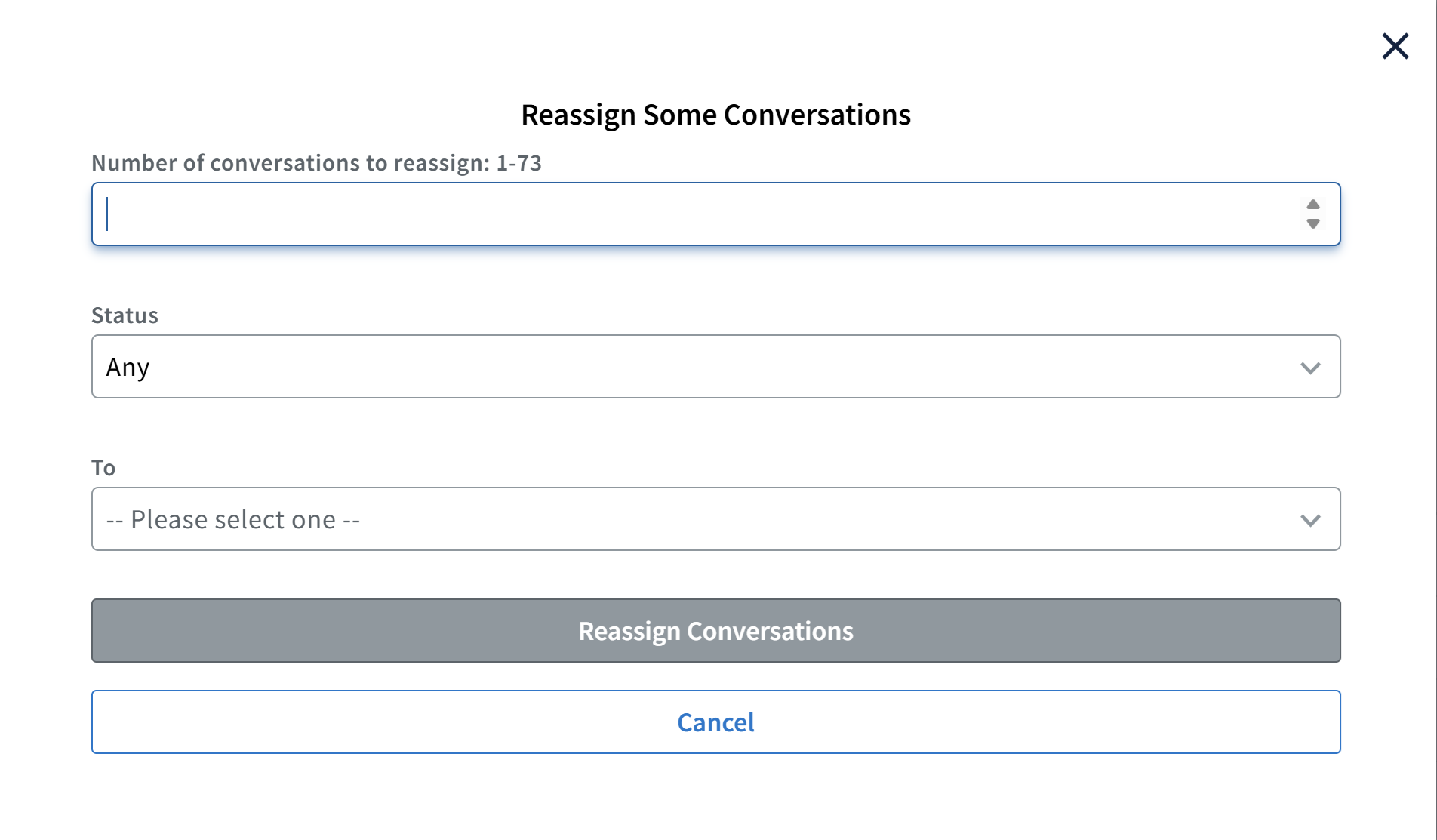
- Reassign Some: Reassign the senders conversations to one or more other senders. You'll have the following options:
- Choose the conversation status of Not Started, Needs Reply, or Any.
- Choose between Select All to select all senders, the checkbox next to a sender name for single selection, or find a sender name via the search field.
- Reassign All: Choose to Reassign all conversations from the sender
- Choose the conversation status of Not Started, Needs Reply, or Any
- Move all conversations from the sender to unassigned, to other specific sender names, or across all other senders in the campaign via distribute to all users.
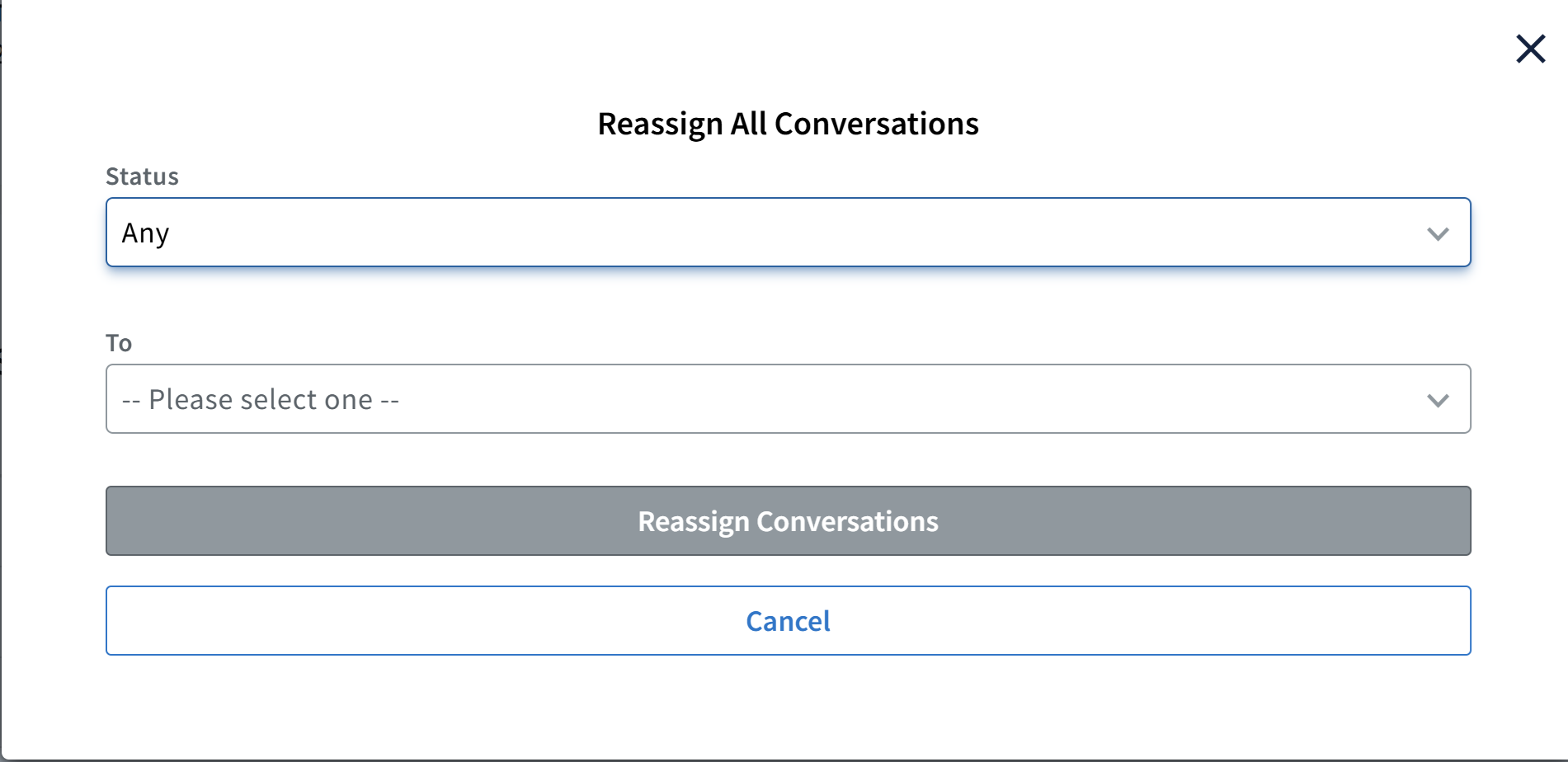
Moving conversations to unassigned will allow senders to request those conversations if Self-Assign is enabled.
Sweeping Your Campaign
Account Owners, Admins, and Moderators can perform sweeping. Campaign sweeping helps keep conversations organized and ensures volunteers stay on task. Using the Conversation Overview page, sweepers can help with reassigning inactive or not started conversations.
Individual conversation review and reassignment can then be handled via the Admin Messenger for the following actions:
- Reassigning a specific conversation from a sender.
- Replying to incomplete threads.
- Ensuring all opt out requests are fulfilled.
- Ensuring survey questions are filled out.
If you are using Automations in your campaigns, your team can use sweeping as a way to review interactions and ensure the contacts do not need any further assistance after the automated keyword-initiated responses. Review our Automations guide for more details on this feature.
Please check out our guide Admin Messenger Management and Reassignment and our video tutorial How to View Conversations and Cleanup Campaigns for additional sweeping tips.
Please reach out to support@getthru.io if you have any questions.